
Sage 100 Contractor MCP Server for Claude: How to Connect
· By Mike Hagberg
Connect Claude or Claude Code to Sage 100 Contractor with the DataXcel MCP server. One URL, no password, and it never writes to Sage. Try it on demo data first.
Ask Claude about your Sage 100 Contractor jobs
The DataXcel MCP server connects Claude to Sage 100 Contractor data. Once it's connected, you can ask Claude about jobs, job cost, WIP, change orders, payables and receivables in plain English, and it answers from the data.
This guide covers DataXcel's own MCP server at mcp.xcel.report. It is not the MCP endpoint built into Metabase. You can try it today on demo data, with or without a DataXcel account.
The short version
| What | Value |
|---|---|
| Server URL | https://mcp.xcel.report/mcp |
| In Claude | Settings → Connectors → Add custom connector |
| In Claude Code | claude mcp add --transport http dataxcel https://mcp.xcel.report/mcp |
| Sign in | Work email and company. No password |
| Data | Demo by default. Customers connect their own workspace |
| Writes to Sage | Never |
What the DataXcel MCP server can do
Claude gets a small set of tools, all built around Sage 100 Contractor:
- Find reports. Search the dashboards and saved reports in the workspace.
- Read a dashboard. See which reports are on it and what each one shows.
- Look up a table. See the columns in a Sage table and how it links to other tables.
- Preview and run queries. Write a query, check it, then run it and return the rows.
- Save your work (customers only). Save a question, or build or update a dashboard, in your own DataXcel workspace.
It never changes Sage. Claude reads your DataXcel workspace, not your Sage database. The query tools only accept reads (SELECT and WITH), and anything that would insert, update or delete is rejected before it runs. The connector never asks for your Sage login, and nothing gets installed on your network.
Every answer is labeled. Demo answers say they come from a synthetic Sage 100 Contractor demo workspace. Answers from your own workspace say Live Sage 100 Contractor data. You always know which one you're looking at.
What you need
- Claude on the web or desktop app, or Claude Code in your terminal. If you're on a Claude Team or Enterprise plan and don't see the option to add a connector, ask whoever manages your Claude account.
- For the demo: nothing else.
- For your own data: a DataXcel workspace (it looks like
https://yourcompany.xcel.report) and admin access to create an API key in it.
Step 1: Add the connector in Claude
In Claude, open Settings → Connectors.
Click Add custom connector.
Name it DataXcel.
Paste the server URL:
https://mcp.xcel.report/mcpKeep the
/mcpat the end. Without it, the connection fails.Click Add, then Connect.
Step 2: Sign in with your work email
Claude opens the DataXcel sign-in page. Enter your work email and company, then click Continue. There's no password.
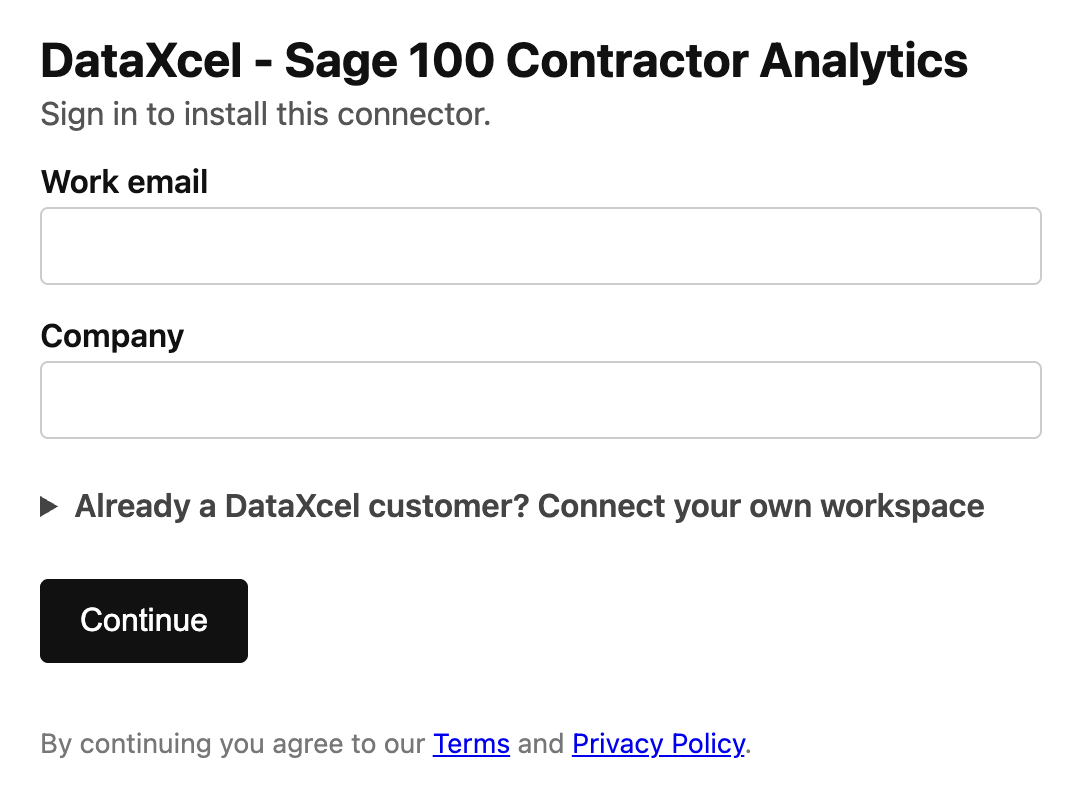
Trying the demo? Leave everything else blank and click Continue. You're connected to the DataXcel demo, built on synthetic Sage 100 Contractor data. Skip to Step 4.
Step 3 (customers): Connect your own workspace
To ask about your own jobs, open Already a DataXcel customer? Connect your own workspace on the same sign-in page and fill in three fields.
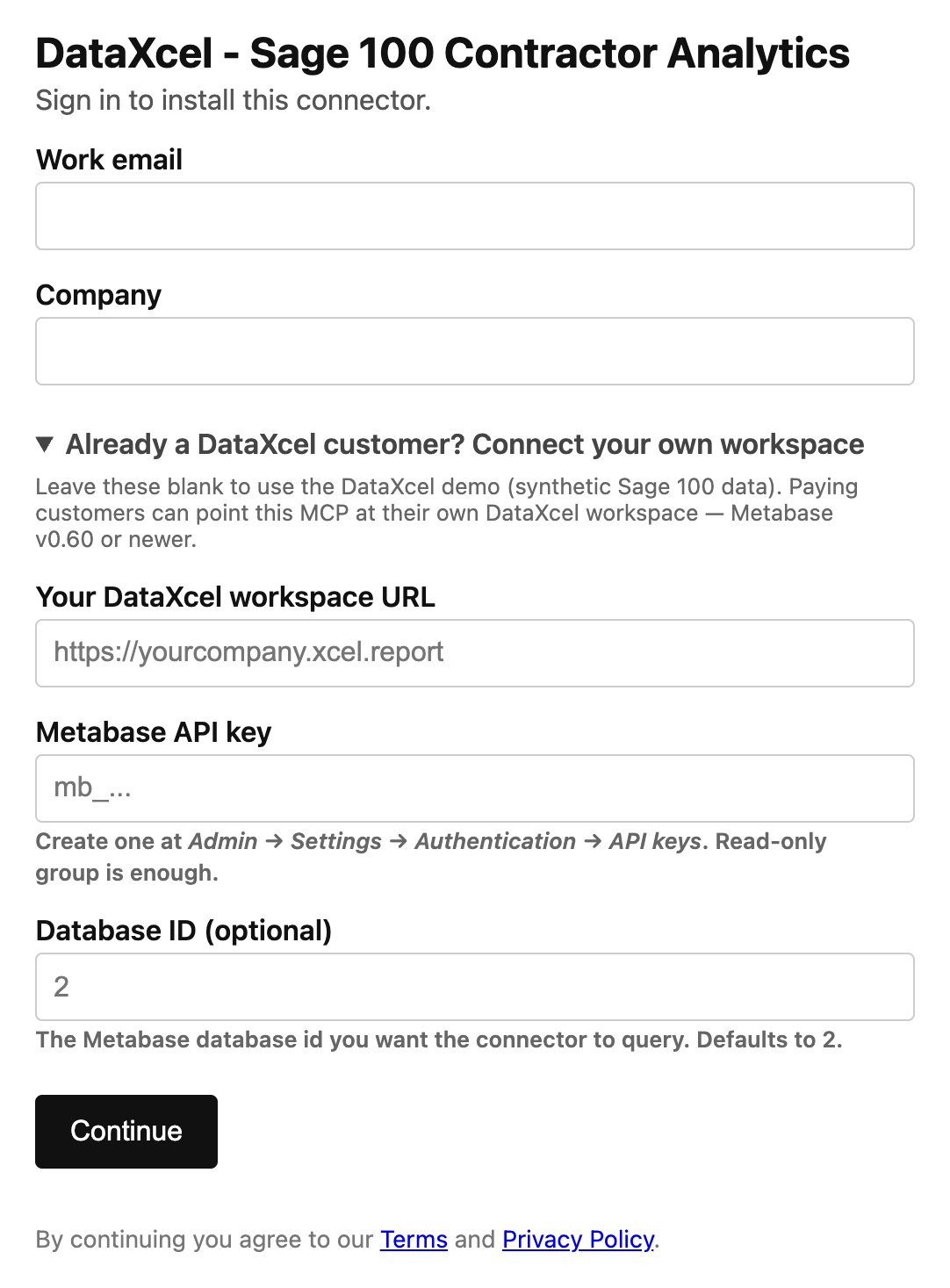
| Field | What to enter |
|---|---|
| Your DataXcel workspace URL | Your workspace address, like https://yourcompany.xcel.report |
| Metabase API key | A key you create in your workspace (below). It starts with mb_ |
| Database ID (optional) | Leave it blank. It defaults to 2, which is right for most workspaces |
To create the API key:
- Open your DataXcel workspace.
- Click the gear icon, then Admin settings.
- Go to Settings → Authentication → API keys.
- Click Create API key. Name it Claude MCP.
- For the group, a read-only group is enough.
- Copy the key and paste it into the sign-in page. Your workspace shows the key only once.
The key is encrypted where we store it. To cut off access at any time, delete the key in your workspace.
Step 4: Ask your first question
Open a new chat in Claude and try one of these:
- "Which jobs are over budget right now?"
- "Show me over/under billing by job."
- "List the 10 largest open payables."
- "What reports do we have for change orders?"
- "How is job 101 tracking against its budget?"
If you're on the demo, Claude says the numbers are sample data. On your own workspace, it says Live Sage 100 Contractor data.
Tip: Tell Claude "keep answers short and use a table." You'll get answers you can scan in seconds.
Connect it to Claude Code
Same server, one command in your terminal:
claude mcp add --transport http dataxcel https://mcp.xcel.report/mcp
Then start Claude Code, type /mcp, pick dataxcel, and sign in. The same sign-in page opens in your browser: email and company for the demo, plus the workspace fields for your own data.
If something doesn't work
| What you see | What to do |
|---|---|
| The connector won't add | Check that the URL ends in /mcp |
| "API key rejected" | Copy the whole key again, and check the workspace URL starts with https:// |
| Answers say demo data, but you wanted yours | Disconnect the connector in Settings → Connectors, connect again, and fill in the workspace fields |
| Saving a report or dashboard shows a message instead | Saving only works on your own workspace, not the demo |
Frequently asked questions
Is there an MCP server for Sage 100 Contractor?
Yes. The DataXcel MCP server at https://mcp.xcel.report/mcp connects Claude and Claude Code to Sage 100 Contractor data. Anyone can try it on demo data. DataXcel customers can point it at their own workspace.
Does the DataXcel MCP server change anything in Sage?
No. Claude reads your DataXcel workspace, not your Sage database. The query tools only accept reads (SELECT and WITH), and anything that would insert, update or delete is rejected before it runs. It never asks for Sage credentials.
Do I need to be a DataXcel customer to use it?
No. Leave the workspace fields blank when you sign in and you get the DataXcel demo, built on synthetic Sage 100 Contractor data. To ask questions about your own jobs, you need a DataXcel workspace.
Does it work with Claude Code?
Yes. Run claude mcp add --transport http dataxcel https://mcp.xcel.report/mcp, then type /mcp inside Claude Code to sign in.
How current is the data?
As current as your DataXcel workspace, which refreshes from Sage 100 Contractor every hour.
How do I know if an answer is demo data or my data?
Every answer is labeled. Demo answers say the data is a synthetic Sage 100 Contractor demo workspace. Answers from your workspace say Live Sage 100 Contractor data.
Want it on your own Sage data?
DataXcel puts your Sage 100 Contractor data into a reporting workspace with 50+ dashboards, and this MCP server lets Claude read it. Security details are in the DataXcel Trust Center, and how we connect to your Sage server explains the connection.
See what DataXcel does → · Try the demos → · Talk to us →
— Mike Hagberg Founder, Xcel Software mhagberg@xcel.software · xcel.software